

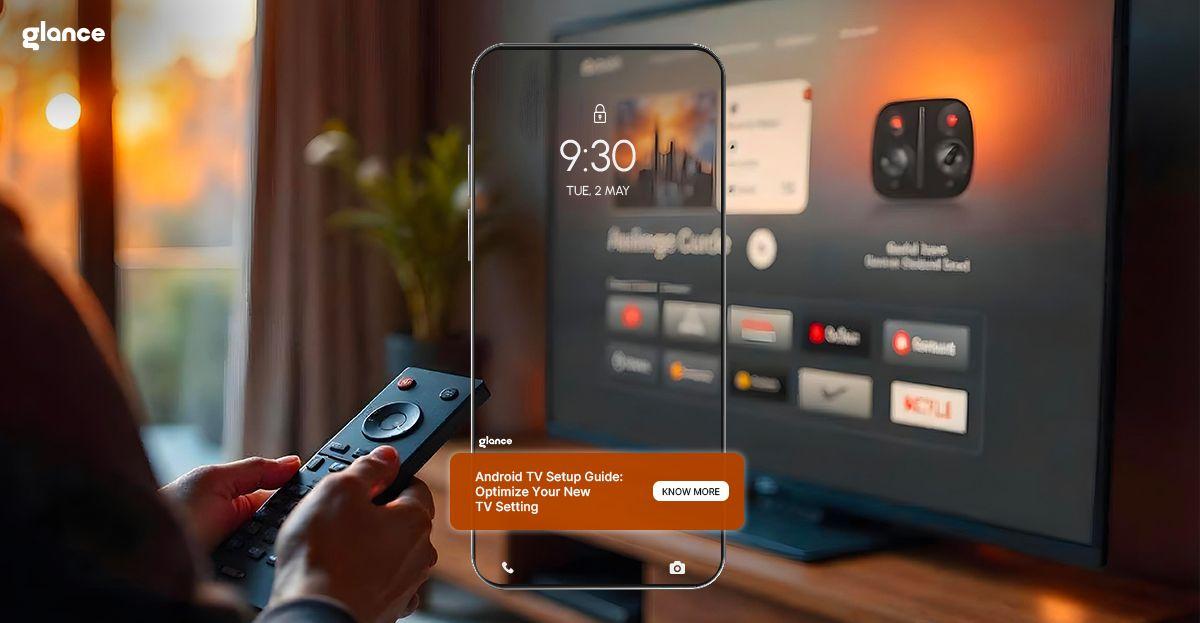
Android TV Setup Guide: Optimize Your New TV Settings
Getting a new Android TV is exciting—but setting it up the right way can make all the difference. From stunning visuals to lightning-fast navigation, a well-optimized setup ensures you get the most out of your smart screen. Whether you're a first-time user or upgrading your home setup, this guide covers everything you need to know.
In this blog, we'll walk you through the complete Android TV setup guide, including the best Android TV settings and advanced tips like enabling personalized idle screens with Glance TV. Let’s turn your living room into a next-gen entertainment hub.
Why New Android TV Setup Matters
Before diving in, here’s why taking time to properly set up your Android TV is crucial:
- Enhanced picture quality: Get the most out of your 4K or HDR display.
- Faster performance: Reduce lags with the right optimization.
- Personalized experience: Tailor your home screen, recommendations, and accessibility settings.
- Smarter interactions: Use voice commands, smart devices, and more.
Let’s begin with the essentials.
Step-by-Step New Android TV Setup Guide

1. Unbox and Connect
- Plug your Android TV into a power source and connect it to your HDMI-compatible device if using an external box (like Airtel Xstream).
- Use a strong HDMI cable for optimal video and audio quality.
- Ensure your remote has working batteries.
2. Language, Region & Internet
- Select your preferred language and region.
- Connect to a high-speed Wi-Fi network. This ensures smoother streaming and software updates.
- Use Ethernet if possible, for a more stable connection.
3. Google Account Sign-In
- Sign in using your Google account to unlock access to apps like YouTube, Play Store, and personalized recommendations.
- This also syncs your data, preferences, and watch history across devices.
4. Install Essential Apps
- Use the Play Store to install apps like Netflix, YouTube, Prime Video, Spotify, and Plex.
- For passive entertainment, make sure Glance TV is activated if you're using an Airtel Xstream box. It transforms your idle screen into an info-rich canvas.
5. Update the Software
- Go to Settings > About > System Update.
- Install the latest firmware and security updates to ensure performance and compatibility.
6. Optimize Android TV Settings
This is a critical part of the setup. Here are some best Android TV settings you should tweak:
a. Display Settings
- Set your resolution to 1080p or 4K (if supported).
- Turn on HDR for a richer viewing experience.
- Adjust screen scaling to fit your display correctly.
b. Audio Settings
- Choose Dolby Atmos or DTS-X if your TV or sound system supports it.
- Use eARC-enabled HDMI ports for high-quality audio.
c. Power & Energy Saving
- Turn on power-saving mode during inactivity.
- Enable auto screen-off after a set time.
d. Accessibility Options
- Use Voice Guide, TalkBack, or screen magnification as needed.
- Customize subtitle size and color.
7. Organize Your Home Screen
- Pin your most-used apps to the top row.
- Remove any pre-installed apps you don’t use.
- Add content rows (e.g., Continue Watching, Trending Now) for quick access.
8. Enable Google Assistant
- Activate voice control through your remote or smartphone.
- Use commands like "Play Stranger Things on Netflix" or "What’s the weather today?"
- Control smart home devices like lights, fans, and thermostats.
9. Enable Parental Controls
- Go to Settings > Device Preferences > Parental Controls.
- Set up restricted content, install PIN protection and filter apps.
10. Explore Advanced Features Like Glance TV
Your TV can do more than just stream shows—it can passively keep you informed. That’s where Glance TV comes in:
- Dynamic idle screen: After 5 minutes of inactivity, Glance TV shows a rotating feed of trends, news, sports scores, and more.
- Real-time sports updates: The sports widget delivers live cricket scores and stats.
- Always-on engagement: Works in the background without needing user interaction.
- Built-in for Airtel Xstream users: Glance TV is the default screensaver.
With Glance TV, your Android TV becomes a smarter, more informative screen—always updating, even when you’re not watching.
Advanced Tips to Optimize Your Android TV Experience
Feature/Setting | What It Does | How to Access It | Why It Matters |
| Energy Saver Mode | Reduces power consumption when TV is idle | Settings > Device Preferences > Energy Saver | Helps save electricity without compromising performance |
| HDMI-CEC (Consumer Electronics Control) | Lets you control connected devices (like soundbars or game consoles) using one remote | Settings > Device Preferences > HDMI Control (Enable CEC) | Simplifies your setup and reduces remote clutter |
| Custom App Order on Home Screen | Lets you rearrange or pin your most-used apps on the home screen | Home Screen > Hold and drag apps to reorder | Quicker access to your favorite apps |
| Bluetooth Accessory Pairing | Connects external keyboards, headphones, or game controllers | Settings > Remotes & Accessories > Add Accessory | Enhances usability for gaming, browsing, and private watching |
| Restricted Profile | Creates a guest or kid-safe mode with app restrictions | Settings > Device Preferences > Security & Restrictions > Restricted Profile | Useful for families or shared TV setups |
| Autoplay Previews Toggle | Turns off loud, automatic video previews in streaming apps | In app settings (e.g., Netflix > Autoplay settings) | Creates a quieter, less distracting experience |
| Input Mapping for Game Controllers | Customize button actions for games | Settings > Remotes & Accessories > Gamepad Settings | Optimizes control layout for individual preferences |
| Manual Software Update Check | Checks for latest firmware and Android TV updates | Settings > Device Preferences > About > System Update | Ensures smooth performance and latest features |
Pro Tips to Maintain Optimal Android TV Performance
- Restart Weekly: Reboot your TV at least once a week to clear the cache.
- Manage App Storage: Delete unused apps regularly.
- Disable Autoplay: Stop auto-playing previews to reduce data and distraction.
- Use Power Saver Mode: Extend TV and remote battery life.
- Keep Firmware Updated: Enable auto-updates in settings.
Final Thoughts
Setting up your new Android TV the right way is the first step to unlocking a smarter, more immersive home entertainment experience. With just a few tweaks and thoughtful installations, you can optimize Android TV settings for picture quality, performance, and personalization.
And with innovations like Glance TV, your screen becomes more than just a viewing device—it’s an always-on window to the world. Perfect for anyone who loves to stay updated without the effort.
Ready to upgrade your screen time? Follow this setup guide and enjoy a next-gen TV experience today.
FAQs: Getting the Best Out of Your Android TV
1. How to make your Android TV better?
Customize display settings, clear cache regularly, disable unused apps, and install essential apps to enhance performance and user experience.
2. How to use Android TV for the first time?
Plug it in, connect to Wi-Fi, sign in with your Google account, follow the on-screen setup steps, and explore the Play Store for apps.
3. How do I optimize my Android TV?
Update software, adjust picture/sound settings, manage storage, enable energy-saving modes, and use an Ethernet connection for better streaming.
4. How do you set up a TV for the first time?
Unbox safely, connect cables and power, follow the guided setup on-screen, choose language, region, and connect to the internet.
5. How do you set up a brand new TV?
Power on, pair the remote, complete the Android setup process, install your favorite apps, and customize settings for optimal viewing.
6. Can a smart TV work without the internet?
Yes, you can use HDMI input, play content from USB drives, and access offline features, but most smart functions require an internet connection.

Your intelligent
shopping agent.







Your intelligent
shopping agent.