

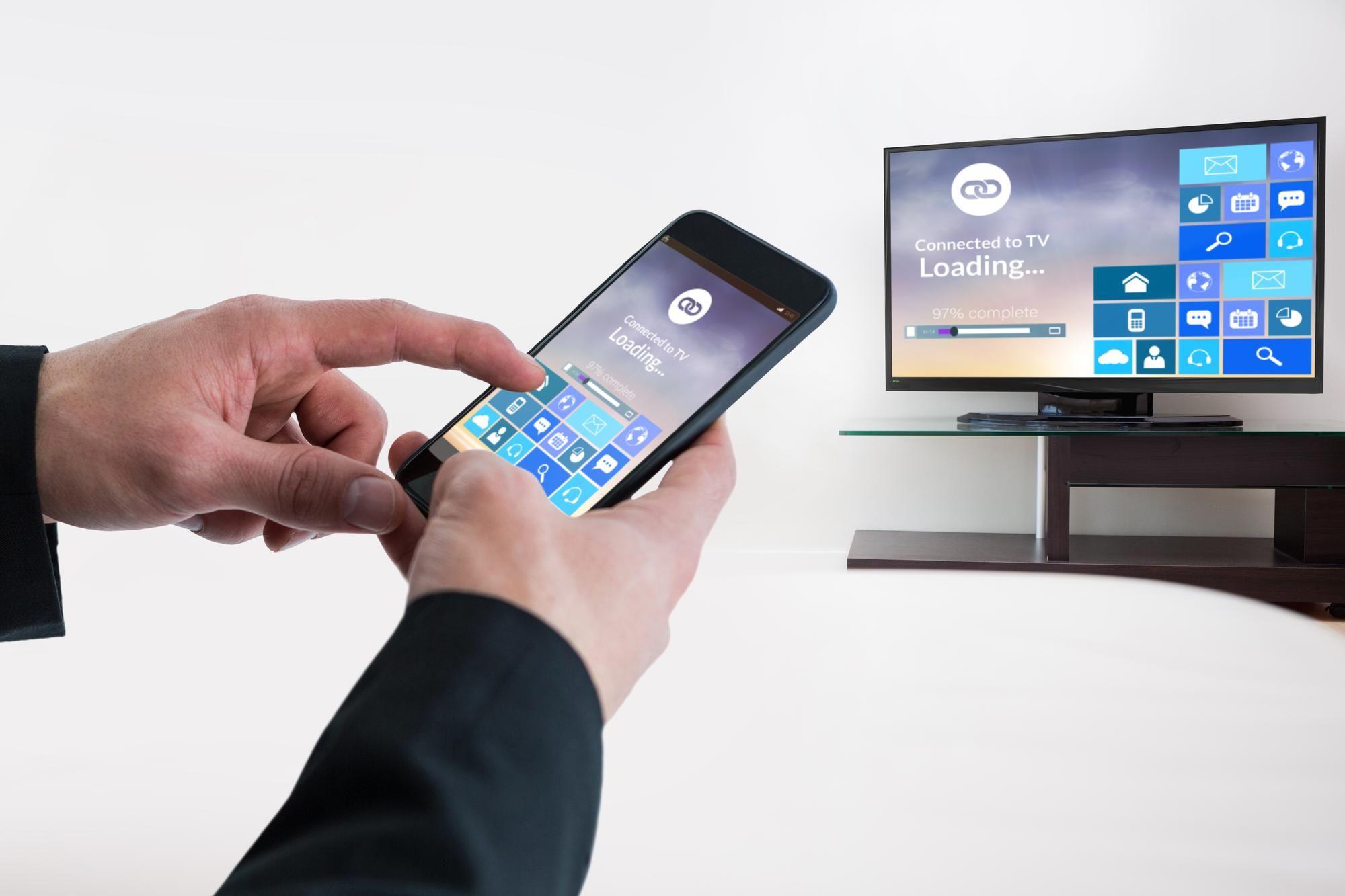
How to Connect Phone with Smart TV Wirelessly – Like a Pro
Introduction
Tired of squinting at your phone screen while watching your favorite movie? Or struggling to share vacation photos with your family crowding around your tiny device? Connecting your phone to a Smart TV wirelessly can solve these issues effortlessly.
In today’s connected world, wireless screen sharing is more popular than ever. Whether you’re using Android or iOS, there are several easy ways to project your phone’s screen onto your Smart TV without any messy cables.
In this blog, we’ll show you how to connect your phone with your Smart TV wirelessly—like a pro.
Why Connect Your Phone to Your Smart TV?
Before diving into the how, let’s understand the why:
- Bigger screen: Perfect for watching movies, videos, or even browsing photos.
- Gaming: Cast mobile games to enjoy on a large display.
- Remote work: Share presentations or attend video calls more comfortably.
- Streaming apps: Enjoy Netflix, YouTube, Prime Video, and more on the big screen.
- Convenience: Use your phone as a remote control or media hub.
Basic Requirements Before You Start
To wirelessly connect your phone to a Smart TV, you need:
- Wi-Fi: Both your phone and Smart TV must be on the same Wi-Fi network.
- Smart TV compatibility: Your TV should support features like Miracast, Chromecast, or AirPlay.
- Updated software: Ensure your phone and TV have the latest firmware.
- Casting/mirroring features: These should be enabled on your TV.
Why Does Wireless Connectivity Matters?
According to recent studies, over 80% of smart TV users prefer wireless phone-to-TV connectivity over traditional wired methods. The demand for seamless integration has surged due to the rise of streaming services, smart home automation, and multi-device synchronization. As more devices adopt wireless mirroring and casting technologies, it's essential to understand how to make the most of these features.
How to Effortlessly Connect Your Phone to a Smart TV?
Method | Devices Supported | Pros | Cons |
| Smart View | Samsung Phones & TVs | Seamless integration, high-quality mirroring | Limited to Samsung devices, possible lag |
| Google Chromecast | Android & iOS | Works with multiple apps, high compatibility | Requires external device if TV isn’t Chromecast-enabled |
| Apple AirPlay | iPhones & AirPlay-compatible TVs | High-quality mirroring, minimal lag | Limited third-party app support, requires AirPlay-compatible TV |
| Miracast | Android Phones & Miracast TVs | Works without Wi-Fi, no additional hardware needed | Not supported by Apple, potential latency issues |
| Third-Party Apps | Android & iOS | Cross-brand compatibility, additional streaming features |
Quality varies, some apps require premium versions |
A. Wireless Methods
1. Wi-Fi Direct / Miracast
Wi-Fi Direct allows your Smart TV and phone to communicate directly without a Wi-Fi network. Many Android devices support Miracast, which uses Wi-Fi Direct for screen mirroring.
Steps to Connect:
- Turn on Wi-Fi Direct on your Smart TV (Settings > Network > Wi-Fi Direct).
- On your phone, go to Settings > Connections > Wi-Fi > Wi-Fi Direct and search for the TV.
- Select your TV from the available devices and confirm the connection.
- Your phone screen will now be mirrored on the Smart TV.
Best for: Watching videos, browsing, and gaming.
2. Chromecast / Google Cast
Chromecast is a great tool that allows you to cast content from your phone to your Smart TV via Google Cast.
Steps to Connect:
- Plug the Chromecast device into the HDMI port of your Smart TV.
- Connect both devices to the same Wi-Fi network.
- Open a Chromecast-supported app (e.g., YouTube, Netflix) on your phone.
- Tap the Cast icon and select your Smart TV.
- Enjoy seamless streaming on the big screen.
Best for: Streaming movies, YouTube, and Netflix.
3. Smart View (For Samsung Phones)
Samsung Smart View allows you to mirror your phone screen onto a compatible Samsung Smart TV.
Steps to Connect:
- Ensure both devices are on the same Wi-Fi network.
- Swipe down on your Samsung phone to access the Quick Settings Panel.
- Tap on Smart View.
- Select your TV from the list.
- Confirm the connection, and your phone screen will be mirrored.
Best for: Samsung users who want a seamless mirroring experience.
4. Apple AirPlay (For iPhone Users)
AirPlay is Apple’s wireless streaming feature that allows users to share media from their iPhone to an Apple TV or AirPlay-compatible Smart TV.
Steps to Connect:
- Ensure both devices are connected to the same Wi-Fi network.
- Swipe down to open the Control Center.
- Tap Screen Mirroring and select your Smart TV.
- Enter the AirPlay code (if prompted) to complete the connection.
Best for: Apple users streaming content to their Smart TV.
B. Wired Methods
1. HDMI Cable (USB-C to HDMI Adapter)
Using an HDMI cable provides a stable connection with no lag.
Steps to Connect:
- Get a USB-C to HDMI adapter (for Android) or a Lightning to HDMI adapter (for iPhone).
- Plug one end of the HDMI cable into your Smart TV.
- Connect the adapter to your phone’s charging port.
- Change the TV input to HDMI.
- Your phone screen will now display on the TV.
Best for: Gaming, HD video streaming, and presentations.
2. USB Cable (For Media File Access)
A USB connection lets you access and play your phone’s media files on your Smart TV.
Steps to Connect:
- Plug a USB cable into your phone and connect it to the TV’s USB port.
- Select Media Transfer (MTP) Mode on your phone.
- Use the TV remote to navigate and access media files.
Best for: Viewing photos and videos without an internet connection.
How to Connect Phone Network to Smart TV?
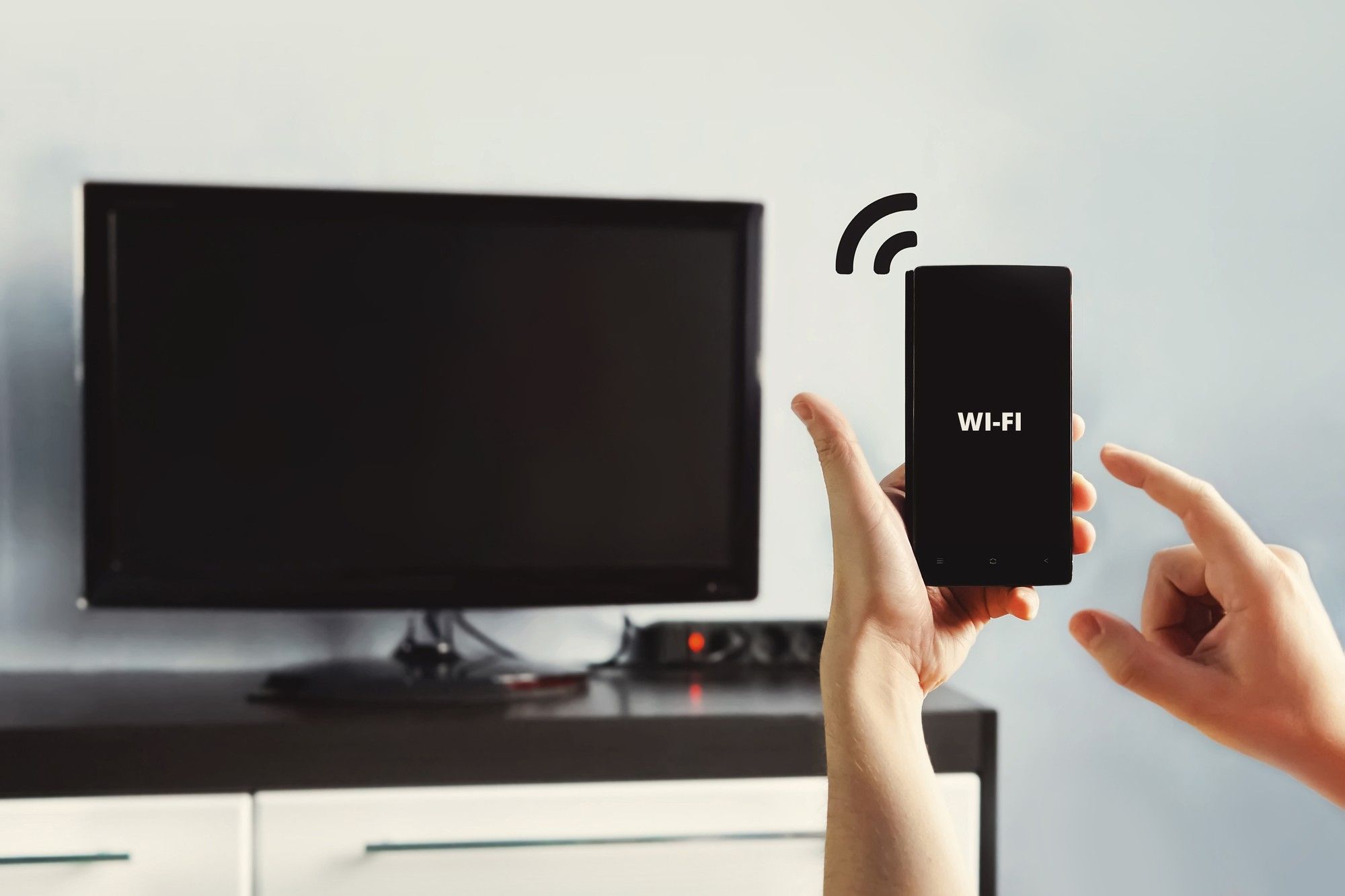
If your Smart TV does not have internet access, you can use your phone’s mobile network to connect it.
Steps to Connect:
- Enable Mobile Hotspot on your phone (Settings > Mobile Hotspot & Tethering).
- Connect your Smart TV to the phone’s hotspot via Wi-Fi.
- Enjoy online content using your phone’s internet connection.
Best for: When Wi-Fi is unavailable.
Why Should You Connect Your Phone to Smart TV?
Before diving into the methods, let’s look at some key reasons why connecting your phone to a Smart TV can enhance your viewing experience:
- Bigger Screen Experience – Perfect for streaming movies, watching YouTube, or playing mobile games.
- Better Audio and Video Quality – Enjoy high-definition visuals and superior sound quality compared to small phone speakers.
- Convenience – No need to transfer files; simply cast your phone’s screen and enjoy.
- Work & Productivity – Use your TV as a second screen for presentations, meetings, or remote work.
Glance Smart TV: A Smarter Viewing Experience
As Smart TVs evolve, Glance Smart TV is redefining how users interact with their screens. Instead of a traditional passive display, Glance provides real-time AI-powered updates on news, sports, entertainment, and more—without requiring active browsing.
Now, with the Glance AI-powered app, the experience extends beyond content consumption. The app introduces an innovative virtual try-on tool, allowing users to experiment with different styles instantly on their phones. With personalized fashion recommendations, Glance helps you curate a wardrobe that matches your identity. If you prefer a bigger, immersive experience, you can also run the Glance app on your smart TV—try on outfits virtually, explore fashion insights on a larger screen, and shop effortlessly.
Why Glance Stands Out
- Always Fresh Content: Get live updates, curated recommendations, and trending stories directly on your Smart TV screen.
- AI-Powered Shopping: Virtual try-on technology lets you explore new styles effortlessly.
- Big-Screen Convenience: Browse, try on outfits, and shop from your TV for an enhanced experience.
- Personalized AI Experience: The AI-driven platform ensures you receive content tailored to your interests.
With seamless integration, Glance Smart TV enhances your entertainment, shopping, and browsing experience—making your smart TV truly interactive and intelligent.
Troubleshooting Common Connection Issues
- TV Not Detecting Phone: Restart both devices and ensure they are on the same Wi-Fi.
- No Sound While Casting: Check TV and phone volume settings.
- Connection Lag: Ensure a strong Wi-Fi connection or switch to HDMI.
- Screen Not Mirroring: Update your phone and Smart TV firmware.
Benefits and Limitations
The Perks of Connecting Your Phone to a Smart TV Wirelessly
Convenience: Wireless connections eliminate the hassle of tangled cables and provide a clutter-free experience.
- Multi-Device Support: Most smart TVs support wireless connectivity for a variety of smartphones, making it versatile.
- Enhanced Viewing Experience: Wireless streaming offers a bigger and more immersive screen for entertainment, gaming, and work presentations.
- Seamless Control: Smartphones can function as a remote control for media playback, volume adjustment, and more.
Limitations to Consider
- Network Dependency: A stable and fast Wi-Fi connection is required for smooth streaming and mirroring.
- Latency Issues: Some wireless mirroring methods may introduce lag, especially in high-motion content.
- Compatibility Restrictions: Not all smart TVs support every wireless connection method, requiring users to check for compatibility.
Pro Tips for Smooth Casting
- Use landscape mode for videos.
- Keep your phone plugged in during long streaming.
- Disable battery saver mode—it may throttle mirroring performance.
- For privacy, turn off screen notifications while mirroring.
Is Wireless Better Than Wired (HDMI)?
Wireless Pros:
- No cable clutter
- More convenient
- Quick sharing
Wired Pros:
- More stable connection
- Better latency for gaming or live calls
Verdict: Wireless is great for everyday entertainment. Use wired only for very specific, performance-heavy tasks.
What More You Can Expect in the Future?
Wireless phone-to-TV tech is evolving fast. Here's what’s coming:
- 5G-powered casting: Ultra-low latency
- Multi-device casting: Use your phone, tablet, and TV in sync
- Voice-controlled casting: "Hey Google, show my gallery on TV."
- Gesture-based control: No remote needed—just waves!
- Zero-lag gaming: Mobile esports on the big screen
Conclusion
As technology advances, the ability to connect your phone to your smart TV wirelessly has become more seamless and versatile. Whether using Smart View, Chromecast, AirPlay, or Miracast, each method has strengths and limitations. The right choice depends on your device compatibility and specific needs.
With 80% of users favoring wireless connections, the future of home entertainment is undoubtedly moving towards cable-free, effortless connectivity. By choosing the best method for your setup, you can unlock a smarter and more immersive TV experience. Explore these options today and take your viewing to the next level!
FAQs
1. Can I connect any phone to any Smart TV wirelessly?
No, not every phone can connect to every Smart TV wirelessly. It depends on your phone's operating system. Android phones usually use Miracast or Chromecast, while iPhones need AirPlay-compatible TVs. A wireless connection works only if both devices support the same technology, or you can use third-party apps or devices to make them compatible.
2. What’s the difference between casting and screen mirroring?
Casting and screen mirroring work differently. Screen mirroring shows your entire phone screen on the TV, copying everything you do in real time. Casting sends only a specific video, song, or app to the TV, and the TV plays it on its own. You can keep using your phone without interrupting the cast.
3. Why won’t my phone connect to the TV?
Your phone may not connect to the TV because of network issues, outdated software, or incorrect settings. Make sure both devices are on the same Wi-Fi network, restart them, and check for any pending updates. Connection problems can also happen if the TV or casting method isn’t supported by your phone.
4. Does wireless screen mirroring work without Wi-Fi?
Yes, wireless screen mirroring can work without a regular Wi-Fi network. Many devices use technologies like Miracast to create a direct connection between your phone and TV, so no internet is needed. Some phones can also create a local hotspot to enable mirroring. If wireless options aren’t supported, a wired connection like an HDMI adapter will still work.
5. Which screen casting or mirroring method gives the best performance?
Methods like Chromecast, AirPlay, and Google Cast generally deliver the best performance because they stream content directly over your Wi-Fi network, offering smoother playback and higher quality. Miracast and third-party mirroring apps can work, but they often depend on device compatibility and may show more lag or lower resolution. For the most stable results, Chromecast or AirPlay is usually the better choice.


Your intelligent
shopping agent.







Your intelligent
shopping agent.